


Showing posts with label touch. Show all posts
Showing posts with label touch. Show all posts
Monday, June 8, 2015


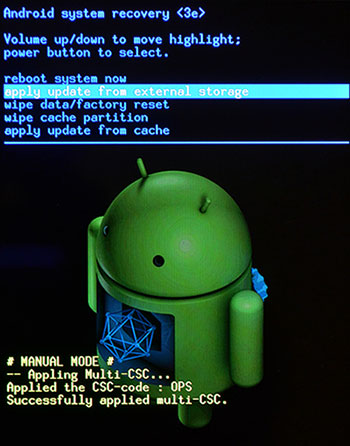
In the event your Android apps freeze or the system becomes unresponsive, you can try to reboot the system as follows:
- Press and hold the Power button of your device until a pop-up menu appears. Select 'Power off' and tap 'OK' to confirm. The system will then turn off.
- Turn the system on by pressing and holding the Power button until the Google logo appears.
In addition to these tips and tricks covering some quick and easy points, if you wish to read a full user guide on Android 4.0 for Galaxy Nexus and earlier versions of the Android system, you can check out the official Android OS Help here.

Using the Android system, you can automatically back up your data, such as a list of apps you've installed, the words you've added to dictionary, your Wi-Fi passwords, Browser bookmarks and other settings via your Google account on the servers.
- Run the app Settings, tap 'Backup & reset' under PERSONAL.
- Check both 'Back up my data' and 'Automatic restore' if they're unchecked.

What
if you need to copy files and folders between your mobile device and
PC? You can do so by connecting your mobile device to your PC using a
USB cable provided. Better still, you can connect them wirelessly via a
local WiFi network to do the same or even more without needing a cable.
- Run the Play Store app.
- Tap the Search button and enter the name of a remote desktop app, such as AirDroid (reviewed here).
- Tap the app from the list and download it.
- Open the app and start using it to connect your mobile to PC for copying files wirelessly and doing even more between the two platforms.
You
might have a lot of your files you want to browse through, copy, rename
or delete them on your mobile device like the way you do in Windows.
Unfortunately you can't do much as Android 4.0 has not had a built-in
file manager, but you can easily install a third party app from the
Google Play Store.


- Run the Play Store app.
- Tap the Search button and enter the name of a file manager, such as ES File Explorer, one of the popular.
- Tap the app from the list and download it.
- Open the app and enjoy working with your files and folders on your mobile device.
Each
time you send out an email using the Email app, you can have a mail
signature, such as 'Sent from my mobile device', automatically added at
the end of your message.


-
Open the app Email, tap the Menu button
, then Settings.
- Tap the email account that you've set up.
- Tap 'Signature', enter a signature in a few words you like then tap 'OK' to confirm.
If you frequently visit a web page, you can tap a web clip or
bookmark icon on your home screen and quickly access the page without
the need to touch the Browser icon. This web clip icon can be added to
your home screen easily:


-
On the page you often visit, tap the Menu button
- Select 'Save to bookmarks'.
- Edit the Label if necessary, then select 'Add to' and tap "Home Screen'.
At
the top of your screen, you will see notifications which report
calendar events, alarms, incoming mails or other ongoing events. Swipe
down from the top of the screen to reveal the list of notifications,
then swipe up from the O-sign to hide it.

 . Touching this icon is equivalent to running the Settings app.

- Depending on the notification type, you can swipe a notification sideway to dismiss it, or tap the X-sign to dismiss all from the list.
- To access a notification, tap it and you're taken to the related email, reminder, message or app. The notification then clears automatically from the list where applicable.
. Touching this icon is equivalent to running the Settings app.
You can easily select a wallpaper from a collection of a few in your system and set it as wallpaper for your Home screens.


- Touch and hold an empty location of a home screen.
- Choose either Gallery, Live Wallpapers or Wallpapers from the pop-up menu.
- Select an image and set it as wallpaper.
Where’s the PrintScreen button when you need to take a screen shot of
your Android device? Instead of using one button, try a combination of
two:
- Press and hold down the Power and Volume-down buttons simultaneously.
- Open the Gallery app, and you can see your screenshot already saved in the Screenshots album.
When
you're typing through, the system checks your spelling and suggests a
few words. Unless you've selected one of them, the highlighted suggested
word overwrites your word when you finish typing it followed by a
space, punctuation mark or return character. If you feel that's
annoying, you can turn off Auto-Correction.


- Open the app Settings and select 'Language & input' under PERSONAL.
-
Tap the Quick Settings icon
next to 'Android keyboard'.
- Select 'Auto correction' under TEXT CORRECTION.
- Select 'Off' to turn off 'Auto-Correction'.
If you often need to switch between the on-screen Alphabet and Number
keyboards just to type a comma in a sentence, then why not check out
below to find out more?
While on the Alphabet keyboard:
While on the Alphabet keyboard:

, (comma) => touch and hold the Full-stop key (.)
' (single quotation mark) => touch and hold the Full-stop key, and slide to choose the single quotation mark (')
" (double quotation mark) => touch and hold the Full-stop key, and slide to choose the double quotation mark (")
Turn caps lock on/off => double-tap the Shift key to lock, single-tap to unlock.
Special letters not on the keyboard? => touch and hold a key, then slide to choose a variation (See the screenshot).
Need just a digit or symbol from the Number keyboard? => touch the ?123 key and slide to a digit or symbol key, and you're back to the Alphabet keyboard automatically.
While on the Number keyboard:
- Symbols not on the keyboard? => touch and hold a key, then slide to choose a variation, or tap the #\< key to find out more.
- Often type an equation? => touch and hold the #\< key, tap a sign and you're back to the Number keyboard when you release the #\< key.
- Need just a letter from the Alphabet keyboard? => touch the ABC key and slide to a letter key, and you're back to the Number keyboard automatically.
Subscribe to:
Posts (Atom)

Popular Posts
-
Q. What is Bluestacks? A. Bluestacks is a Silicon Valley-based software company that produces BlueStacks App Player and BlueStacks Cloud ...
-
 Here Are The List For Some Best Android Phones And specification : Hello Everyone How Are You.Are You loooking For A New Android Phone ...
 -
 সফটওয়্যার down করুন এখনি!! এবার এডসেন্স পাওয়া ঠেকায় কে?? আসসালামুআলাইকুম, আমি তারিফ কেমন আছেন আপনারা? ভালো থাকুন সবসময়। ...
 -
 Android mobile is the latest and wonderful invention of modern science.It’s made our life easy and comfortable.We can use it anywher...
 -
 How to Get Skype on Android Phone Are you wanted to develop your Android Smartphone by video calling and IM via Skype? ...
 -
 One of the easiest ways to install an Android app is to use Barcode Scanner, a handy and efficient tool developed by ZXing Team...
 -
 How to Get Skype on Android Phone Are you wanted to develop your Android Smartphone by video calling and IM via Skype? If you deve...
 -
 It was just by chance that I came to know about the existence of a really good tool for Android devices through an advertisement on a sit...
 -
What is Android Mobile? Android is a mobile operating system(OS).Which developed by google and Handset Alliance.It’s available for s...
-
Other than the apps on the tray, sometimes it's difficult to quickly look for an app to open if you have many icons spreading across a...


Popular Posts
-
Q. What is Bluestacks? A. Bluestacks is a Silicon Valley-based software company that produces BlueStacks App Player and BlueStacks Cloud ...
-
Here Are The List For Some Best Android Phones And specification : Hello Everyone How Are You.Are You loooking For A New Android Phone ...
-
সফটওয়্যার down করুন এখনি!! এবার এডসেন্স পাওয়া ঠেকায় কে?? আসসালামুআলাইকুম, আমি তারিফ কেমন আছেন আপনারা? ভালো থাকুন সবসময়। ...
-
Android mobile is the latest and wonderful invention of modern science.It’s made our life easy and comfortable.We can use it anywher...
-
How to Get Skype on Android Phone Are you wanted to develop your Android Smartphone by video calling and IM via Skype? ...
-
One of the easiest ways to install an Android app is to use Barcode Scanner, a handy and efficient tool developed by ZXing Team...
-
How to Get Skype on Android Phone Are you wanted to develop your Android Smartphone by video calling and IM via Skype? If you deve...
-
It was just by chance that I came to know about the existence of a really good tool for Android devices through an advertisement on a sit...
-
What is Android Mobile? Android is a mobile operating system(OS).Which developed by google and Handset Alliance.It’s available for s...
-
Other than the apps on the tray, sometimes it's difficult to quickly look for an app to open if you have many icons spreading across a...